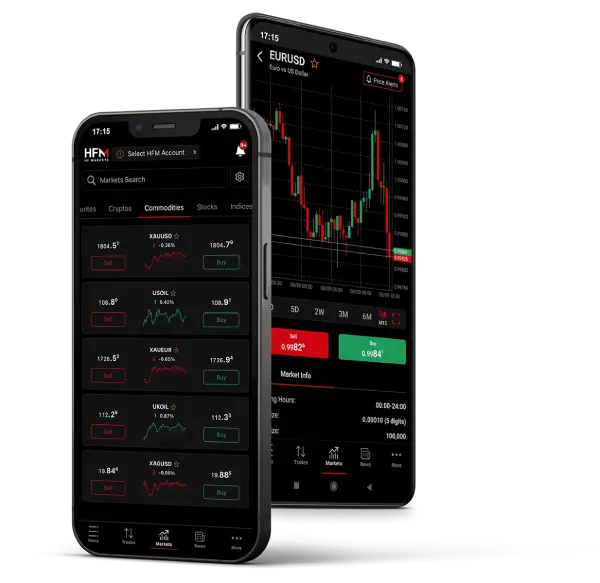
Discover the perfect trading environment tailored to your preferences with HFM’s versatile platforms.
Explore HFM WebTrader, MT4, MT5 and the HFM App, which all offer a unique set of powerful tools and features, empowering you to trade with confidence and efficiency.
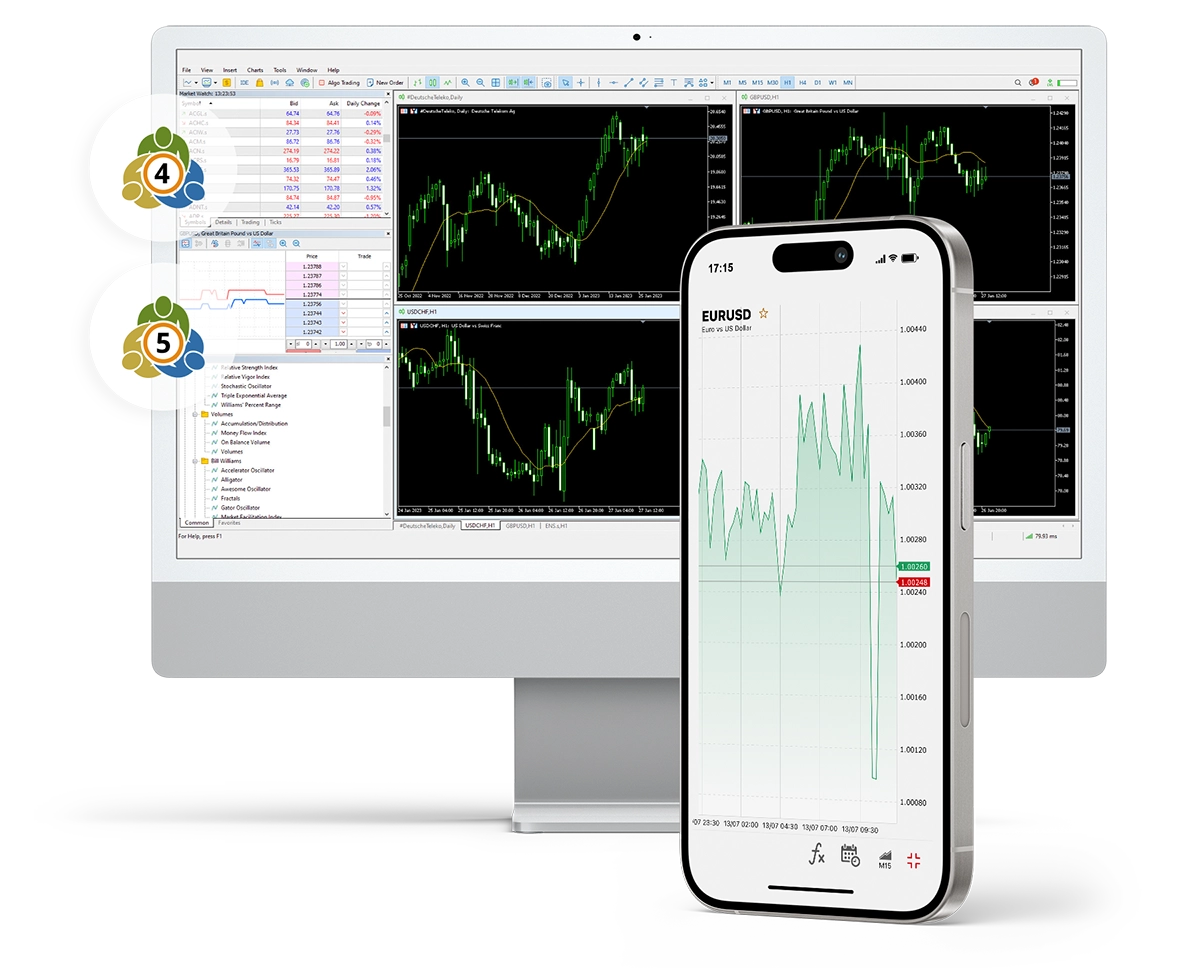
For a comparative overview of the various trading platforms available, including a side-by-side comparison of their key features, refer to the table provided below:
| Feature | HFM WebTrader | MT4 | MT5 | HFM App |
|---|---|---|---|---|
| Platform Type | Web-based | Desktop/Mobile/Web-based | Desktop/Mobile/Web-based | Mobile App |
| Timeframes | 9 | 9 | 21 | 9 |
| Technical Indicators | 100+ | 30 | 38 | 5 |
| Analytical Objects | 80+ | 31 | 44 | 11 |
| Chart Types | 17 | 3 | 3 | 3 |
| Built-in Economic Calendar | ||||
| Pending Order Types | 4 | 4 | 6 | 4 |
| Expert Advisors (Desktop) | ||||
| Multiple Chart Layouts | ||||
| Launch WebTrader | Download MT4 | Download MT5 | Download HFM APP |
On HFM WebTrader, MT4, MT5, and the HFM App, you can access a diverse range of trading instruments, including CFDs on Forex, Metals, Energies, Commodities, Cryptocurrencies, Bonds and Indices. Please note that ETFs and DMA (Direct Market Access) are exclusively available on the HFM WebTrader, MT5, and HFM App.
Yes, you can access and trade both your MetaTrader 4 and MetaTrader 5 accounts directly on your browser through HFM WebTrader. HFM WebTrader offers full functionality for managing and executing trades and true cross-device sync, which means that every position, price alert and action is instantly updated across all your devices.
No, you cannot trade on your MetaTrader 4 account using a MetaTrader 5 platform. The MT5 platform is compatible only with MT5 accounts, while the MT4 platform is designed for MT4 accounts. To trade on MT5, you'll need to open an MT5 account separately. You can open an MT5 account here.
No, you cannot use MetaTrader 5 app credentials to log into MetaTrader 4. Each platform requires its own set of credentials for logging in.
Yes, you can trade on both MT4 and MT5 simultaneously. Simply ensure you have accounts set up for both platforms and have completed any necessary downloads and installations.
Yes, you can access and trade both your MetaTrader 4 and MetaTrader 5 accounts directly through the HFM App. The app offers full functionality for managing and executing trades on both platforms.
| Account | Suffix | Trading Platform | Symbol Group | Examples |
|---|---|---|---|---|
| InfinityX | x | MT4, MT5, HFM | Forex Gold Energies Crypto Indices | GBPUSDx, XAUUSDx, #BTCUSDx |
| Cent | c | MT4, MT5 | Forex Gold | EURUSDc, XAUUSDc |
| Zero | b | MT4, MT5 | Forex Gold Energies Crypto Indices | EURUSDb, XAUUSDb, #BTCUSDr |
| Pro | r | MT4, MT5 | Forex Gold Energies Crypto Indices | EURUSDr, XAUUSDr, #BTCUSDr |
| Premium | No suffix | MT4, MT5 | Forex Gold Energies Crypto Indices | EURUSD, XAUUSD, #BTCUSD |
To add a symbol, go to your MetaTrader 4/5 platform, click View on the top menu, then select Market Watch. After that:
Right-click anywhere inside the Market Watch window.
Select Symbols.
Search for the instruments with your account suffix.
Select the symbol you want to add, then click Show Symbol.
To remove a symbol, make sure the chart window of that symbol is closed. Then:
Right-click on the symbol in your Market Watch.
Select Hide to remove it.